
In today’s interconnected world, privacy has become a paramount concern, particularly on mobile devices like Android smartphones. These devices hold a wealth of personal information, from our contacts and browsing history to our location data and financial details. Therefore, understanding and utilizing the optimal privacy settings available on your Android device is crucial for safeguarding your sensitive data and maintaining your digital privacy. This ultimate guide will delve into the essential steps you can take to boost your Android privacy, providing you with the knowledge and tools to take control of your personal information.
This comprehensive guide is designed to empower you to navigate the sometimes-complex world of Android privacy settings. Whether you are a tech-savvy user or a beginner, this guide will offer practical advice and clear instructions on how to configure your Android device for optimal privacy. From managing app permissions and controlling location tracking to securing your lock screen and browsing securely, we will cover a wide range of topics to help you boost your Android privacy and protect your digital footprint. Learn how to take advantage of built-in Android privacy features and gain peace of mind knowing your personal information is secure.
Understanding Android Privacy Settings
Android offers a robust set of privacy controls designed to give you control over your data. Understanding these settings is the first step toward securing your personal information and online activity.
These settings govern how apps access various aspects of your device, from your location and contacts to your camera and microphone. They allow you to define the level of access each app receives, preventing unnecessary data collection and potential misuse.
Regularly reviewing and adjusting your privacy settings is crucial. As you install new apps and Android updates are released, new settings and features may become available, requiring your attention to maintain optimal privacy.
Navigating these settings may seem complex initially, but Android presents them in a user-friendly manner. By familiarizing yourself with the core privacy controls, you can significantly enhance your digital security.
Key Privacy Settings to Adjust Immediately
Several crucial privacy settings can be adjusted right away to significantly enhance your Android device’s security. These settings offer immediate protection against potential privacy breaches and are easy to implement.
Screen Lock
A strong screen lock is fundamental. Use a PIN, password, or pattern, avoiding simple options like slide or none. Enable lock after screen timeout to prevent unauthorized access when your device is inactive. Consider also enabling Lock Now for quickly securing your phone when needed.
Biometrics
While convenient, consider the security implications of using biometrics. Fingerprint and facial recognition can be susceptible to certain vulnerabilities. Review and understand the risks before solely relying on these features.
Google Play Protect
Ensure Google Play Protect is enabled. This service scans apps for malicious behavior, protecting your device from harmful software. Regularly review the scan results and act on any warnings.
Find My Device
Activate Find My Device to locate, lock, or erase your phone remotely if it’s lost or stolen. This feature is crucial for protecting your personal data in such situations.
Location Data: Balancing Convenience and Privacy
Location services offer significant convenience, allowing apps like maps, ride-sharing services, and weather apps to provide personalized experiences. However, sharing your location constantly raises privacy concerns.
Android offers granular control over location sharing. Instead of simply enabling or disabling all location services, you can choose between several modes. High accuracy mode uses GPS, Wi-Fi, and mobile networks for pinpoint precision, but consumes more battery. Battery saving mode uses Wi-Fi and mobile networks, sacrificing some accuracy for longer battery life. Device only mode relies solely on GPS, offering the most privacy but may be less reliable indoors.
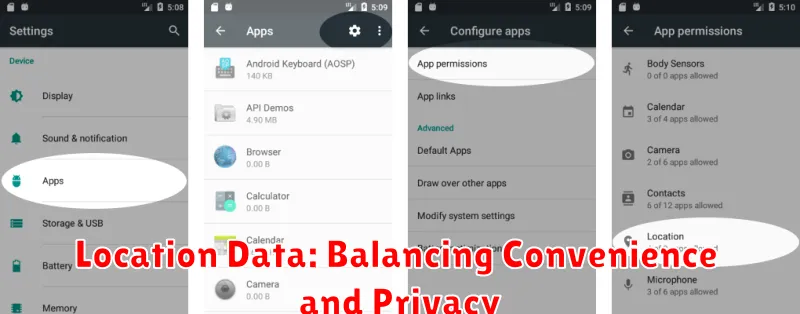
You can also manage location access on a per-app basis. Review the apps that have location permissions and consider if their functionality truly requires your location. Revoking unnecessary permissions can significantly enhance your privacy.
Consider enabling Google Location History controls. This feature allows you to review and manage your location data stored by Google. You can choose to pause location history, automatically delete past data, or manage location sharing specifically with Google apps.
App Permissions: Granting Only What’s Necessary
App permissions dictate what resources on your device an app can access. Granting unnecessary permissions can compromise your privacy. Review and manage these permissions regularly to ensure apps only access what they truly need.
Android organizes permissions into categories like camera, microphone, location, and storage. When an app requires a permission, a prompt will appear. Don’t simply tap “Allow.” Consider if the permission makes sense given the app’s functionality.
For example, a calculator app shouldn’t need access to your microphone or contacts. A photo editing app likely requires access to your photos, but not your location. Be mindful of these discrepancies and deny permissions that seem excessive or unrelated to the app’s core purpose.
You can review and modify permissions for individual apps in your phone’s settings. Look for the “Apps” or “Applications” section, select the specific app, and navigate to its “Permissions.” Revoke permissions for any app that you feel has overstepped its boundaries.
Controlling Camera and Microphone Access
Your device’s camera and microphone are powerful tools, but they can also be exploited to compromise your privacy. Controlling access to these sensors is crucial.
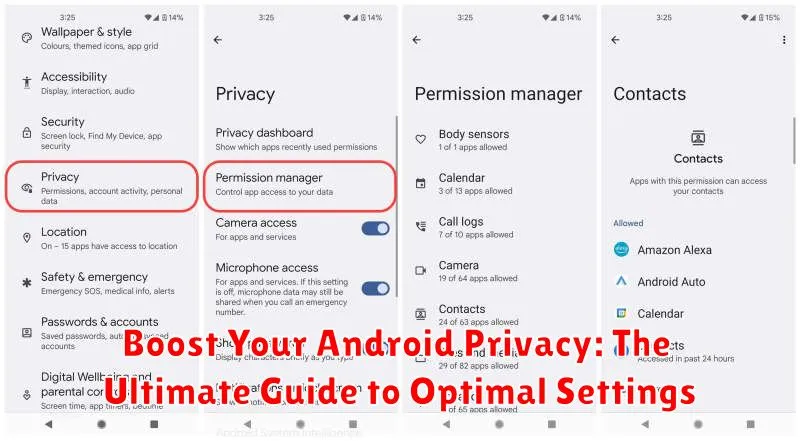
Android provides granular control over which apps can use your camera and microphone. Navigate to your device’s Settings, then Privacy, and look for Permissions Manager or a similarly named option. Within this section, you can see which apps have requested access to your camera and microphone. You can revoke permissions for apps you no longer trust or use.
Consider the principle of least privilege. Grant access only to apps that genuinely require it for their core functionality. Does a calculator app really need access to your microphone? Probably not.
Be wary of granting camera and microphone access to third-party keyboards or apps from unverified sources. Malicious actors could potentially record your conversations or capture images without your knowledge.
Pay attention to the permission requests when installing new apps. If an app requests access that seems unnecessary, question its legitimacy.
Securing Your Lock Screen and Biometrics
Your lock screen is the first line of defense against unauthorized access. Strengthening it is crucial. Android offers several lock screen options, ranging from simple patterns to complex PINs and passwords. Biometrics, such as fingerprint and facial recognition, add another layer of security.
Avoid using simple patterns or easily guessable PINs. Opt for strong passwords or alphanumeric PINs. While biometrics offer convenience, understand their limitations. They can be less secure than strong passwords. Configure your device to require a password after a certain period of inactivity or restarts, even if biometrics are enabled.
Within your lock screen settings, adjust the amount of information displayed on the locked screen. Limit notifications to only essential apps or disable them entirely on the lock screen to prevent sensitive information from being visible.
Consider enabling Lockdown Mode for enhanced security in specific situations. This feature temporarily disables biometrics and smart lock options, requiring your password or PIN for access. It adds a layer of protection if you feel your security might be compromised.
Advanced Privacy Features in Android
Beyond the basic settings, Android offers a range of advanced privacy features to give you granular control over your data. Permission management is key. Regularly review the permissions granted to your apps, revoking access to those that don’t require it. Android allows you to grant permissions only while using the app, denying background access for increased security.
Privacy Dashboard provides a comprehensive overview of app activity, including sensor usage (camera, microphone, location). This allows you to identify potentially invasive apps and adjust their permissions accordingly. Look for the “Manage Permissions” or similar setting within your device’s privacy settings.
Google Play Protect scans apps for malware and harmful behavior. Ensure this feature is enabled to mitigate risks from malicious apps. Furthermore, consider disabling “Ad Personalization” within your Google account settings to limit targeted advertising based on your activity.
Private DNS allows you to use a custom DNS server for increased privacy and security. This feature can help prevent your DNS queries from being monitored and potentially manipulated.
Regularly Reviewing and Updating Your Settings
Maintaining strong privacy on your Android device requires consistent review and updates to your settings. Android updates frequently introduce new privacy features and improvements. Regularly check for system updates and install them promptly to benefit from the latest protections.
Beyond system updates, periodically revisit your privacy settings. At least once a month, review the permissions granted to your apps. Revoke access for apps that no longer require specific permissions. This proactive approach helps limit data exposure and maintains greater control over your information.
Furthermore, re-evaluate your location settings. Consider disabling location services entirely when not in use or opting for app-level toggles to grant location access only when necessary. This minimizes the collection of your location data in the background.
Protecting Your Data Backups
Data backups are essential for recovery in case of device loss or malfunction, but they can also be a privacy vulnerability if not properly secured. Therefore, understanding how to protect your backups is crucial for maintaining your overall Android privacy.
Ensure your backups are encrypted. Android offers built-in encryption for backups, protecting your data with a password or PIN. This prevents unauthorized access should your backup be compromised.
Carefully consider what data to back up. You may choose to exclude sensitive information like financial app data or specific photos and videos from your backups. This minimizes the risk associated with backed-up data.
Be mindful of where your backups are stored. While Google Drive is a convenient option, consider the privacy implications of storing your data in the cloud. Local backups on your computer or an external drive offer greater control, but require more management.
