
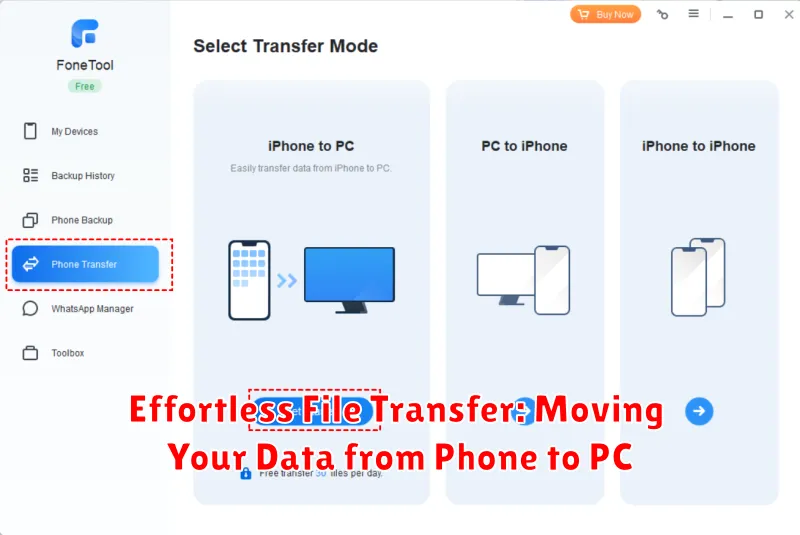
Transferring files between your phone and PC can often be a tedious and time-consuming process. Whether you’re dealing with photos, videos, documents, or other important data, the need for a seamless and effortless file transfer solution is paramount. This article will explore various methods and tools that simplify the process of moving your data from phone to PC, allowing you to manage your digital life with ease and efficiency. We’ll cover everything from simple USB connections to advanced wireless transfer options, ensuring you find the perfect method for your specific needs.
Say goodbye to the frustration of slow and complicated file transfers. Discover how to quickly and effortlessly move your data from phone to PC using a variety of proven techniques. This guide will provide you with the knowledge and resources to streamline your data management, saving you valuable time and effort. Whether you’re using an Android device or an iPhone, we’ll cover the most effective file transfer methods available, ensuring a smooth and effortless experience.
Understanding Different File Transfer Methods
Transferring files between your phone and PC can be accomplished through various methods, each with its own advantages and disadvantages. Choosing the right method depends on factors like file size, available hardware, and security preferences. Understanding these methods empowers you to select the most efficient and appropriate option for your needs.
Wired connections, such as using a USB cable, offer a direct and generally fast transfer speed, especially for larger files. This method is reliable and widely supported across devices. However, it requires a physical cable and compatible ports on both devices.
Wireless methods provide greater flexibility and convenience. These include cloud storage services, which allow you to upload files from one device and download them on another. Other wireless options like Bluetooth and Wi-Fi Direct offer direct device-to-device transfers, eliminating the need for intermediary services. Wireless transfer speeds can vary depending on network strength and file size. Security considerations are also important when choosing a wireless method.
Transferring Files via USB Cable
A USB cable offers a direct and reliable method for transferring files between your phone and PC. This physical connection typically provides faster transfer speeds compared to wireless methods, especially for large files.
To begin, connect your phone to your PC using a compatible USB cable. Your phone may prompt you to select a USB connection mode. Choose the “File Transfer” or “Data Transfer” option (the wording may vary depending on your phone’s operating system). Your PC should then recognize your phone as an external storage device.
Locating Files on Your PC: Once connected, your phone should appear in your PC’s file explorer (Windows Explorer or Finder on macOS) alongside other drives. Navigate through your phone’s folders to locate the files you wish to transfer.
Transferring Files: You can transfer files using standard copy-and-paste or drag-and-drop operations. Select the desired files on your phone, copy them, and then paste them into the desired location on your PC. Alternatively, you can drag files directly from your phone’s folder to a folder on your PC.
Safely Disconnecting: After the transfer is complete, safely eject your phone from your PC. This step is crucial to prevent data corruption. Look for the “Safely Remove Hardware” icon in your system tray (Windows) or right-click and eject the device (macOS) before unplugging the USB cable.
Using Cloud Storage Services for File Transfer
Cloud storage services offer a convenient and versatile method for transferring files between your phone and PC. By utilizing services like Google Drive, Dropbox, or OneDrive, you can seamlessly move data without the need for physical cables.
The process typically involves uploading the desired files from your phone to your cloud storage account. Once uploaded, these files become accessible from any device connected to the internet, including your PC. This allows you to effectively synchronize data across multiple devices.
Key advantages of using cloud storage include: accessibility from anywhere with an internet connection, automatic synchronization across devices, and serving as a backup solution for your important files.
Choosing the right cloud storage provider depends on your specific needs and preferences. Consider factors like storage capacity, security features, and platform compatibility when making your selection. Most providers offer free tiers with limited storage, while paid subscriptions provide larger storage capacities and additional features.
Wireless File Transfer Options (e.g., Bluetooth, Wi-Fi Direct)
Cutting the cord offers convenient file transfer between your phone and PC. Several wireless methods facilitate this process, each with its own advantages and limitations.
Bluetooth
Bluetooth provides a widely supported, short-range wireless solution. It’s ideal for transferring smaller files like documents or individual photos due to its relatively slower speed. Pairing your phone and PC is the first step, after which you can select the files on your phone and choose the paired PC as the destination. While easy to use, Bluetooth isn’t suitable for large file transfers.
Wi-Fi Direct
Wi-Fi Direct enables faster file transfers than Bluetooth by creating a direct peer-to-peer connection between devices. This method bypasses the need for a central Wi-Fi network. While offering superior speed, its availability can vary depending on device compatibility.
Transferring Specific File Types (Photos, Videos, Documents)
Different file types often have optimized transfer methods. Understanding these nuances can streamline your workflow. For photos and videos, consider using dedicated apps provided by your phone manufacturer. These often offer automatic backups and optimized transfer speeds. Alternatively, connecting your phone as a media device (MTP) allows you to directly access the DCIM folder containing your media.
For documents, cloud services offer a seamless experience, automatically syncing files across devices. Services like Google Drive, Microsoft OneDrive, and Dropbox are excellent choices. Alternatively, email remains a viable option for transferring individual documents quickly.
Specific file management software can also assist with transferring various file types. These programs often provide a user-friendly interface for browsing and selecting files on your phone, then transferring them to your PC.
Troubleshooting File Transfer Issues
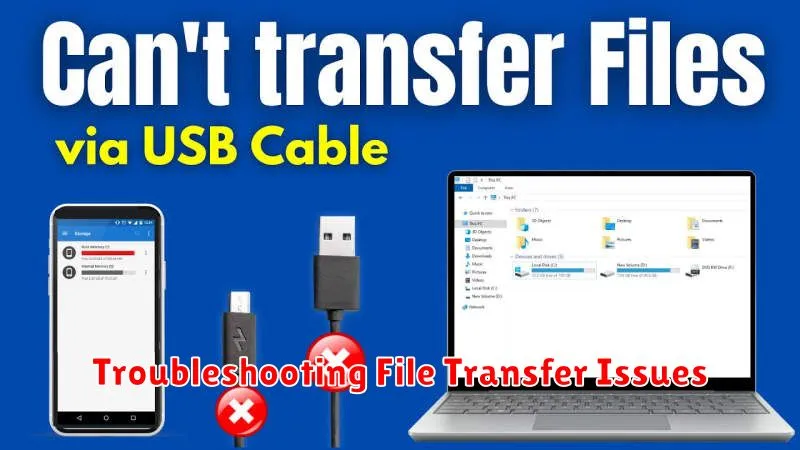
Occasionally, you might encounter problems when transferring files between your phone and PC. This section offers troubleshooting tips to resolve common issues.
Connection Problems
Check Cables and Ports: Ensure your USB cable is properly connected to both devices and try a different USB port on your computer. A faulty cable or port can disrupt the connection.
Driver Issues (PC): Outdated or corrupted drivers can hinder file transfer. Check your device manager for any issues and update or reinstall drivers as needed.
File System Errors
File Format Incompatibility: Confirm that the file format is supported by both your phone and PC. Converting the file to a compatible format might be necessary.
Storage Space: Verify sufficient storage space on the destination device. Delete unnecessary files to free up space if needed.
File Corruption: If a file is corrupted, it might not transfer successfully. Try transferring a different file to rule out corruption.
Best Practices for Secure File Transfers
Securely transferring files between your phone and PC is paramount to protecting your data. Employing strong security practices minimizes the risk of unauthorized access and data breaches.
Use a Strong Password for Wi-Fi: When transferring files wirelessly, ensure your Wi-Fi network is secured with a strong, unique password. This prevents unauthorized access to your network and data during the transfer process.
Enable Encryption When Available: Many file transfer methods offer encryption options. Always choose encrypted transfers when available, as this scrambles your data, making it unreadable to anyone intercepting the transfer.
Avoid Public Wi-Fi: Public Wi-Fi networks are inherently insecure. Refrain from transferring sensitive files on these networks as they are vulnerable to eavesdropping. Opt for a secure, private network connection whenever possible.
Verify the Destination Device: Before initiating a transfer, double-check you’re sending files to the intended device. This helps prevent accidental data leaks to unintended recipients.
Optimizing Transfer Speeds
Transferring large files can sometimes be slow. Here are some tips to optimize transfer speeds between your phone and PC.
Choosing the Right Connection
Wired connections are generally faster than wireless. If possible, use a USB cable to connect your phone directly to your PC. This will provide the highest transfer speeds, especially for large files like videos or high-resolution photos.
For wireless transfers, ensure you have a strong Wi-Fi signal. A weak or unstable connection will significantly impact transfer speeds and may even lead to interrupted transfers.
Minimizing Interference
Close unnecessary applications running on both your phone and PC. Background apps consume resources and bandwidth, which can slow down file transfers.
Software and Apps to Aid File Transfer
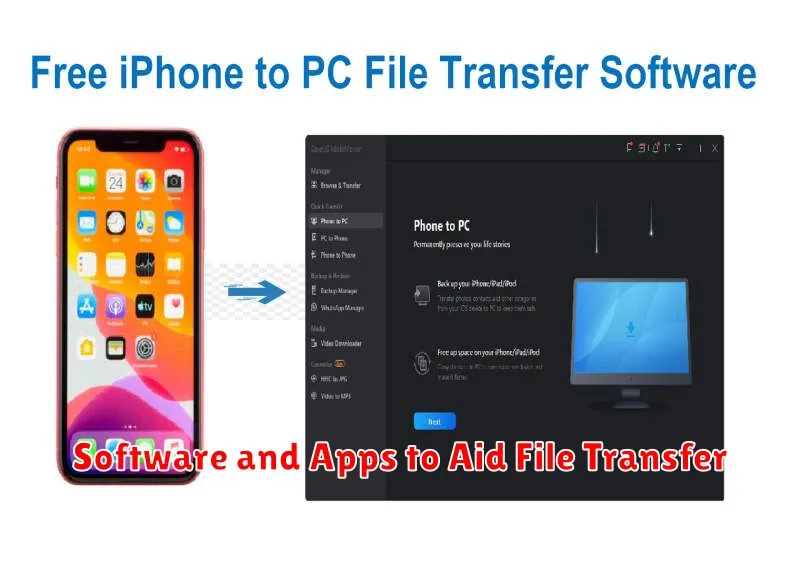
Several software and applications can simplify and enhance file transfers between your phone and PC. Choosing the right tool often depends on your operating system, transfer frequency, and data types.
For Wireless Transfers:
Cloud storage services like Google Drive, Dropbox, and OneDrive allow seamless synchronization across devices. Uploading files to the cloud on your phone makes them instantly accessible on your PC.
Dedicated file transfer apps, such as Send Anywhere or ShareIt, utilize local Wi-Fi networks for fast and direct transfers without relying on the internet.
For Wired Transfers:
Your phone’s native file management software, often accessible when connecting via USB, allows direct browsing and transfer of files.
Specialized desktop applications, like the official software suites provided by phone manufacturers, can offer additional features like backup and restore functionality alongside file transfer capabilities.
