
Are you constantly battling screen brightness that’s too intense? Do you find yourself squinting at your phone in dimly lit environments, wishing you could dim it down? Excessive screen brightness can strain your eyes, drain your battery, and even disrupt your sleep. This article will guide you through easy and effective ways to reduce screen brightness on your phone, ensuring a more comfortable and personalized viewing experience.
Managing your phone’s screen brightness is crucial for both your eye health and battery life. Whether you’re looking for quick adjustments or prefer to automate the process, understanding the different methods to dim your screen is essential. From manual controls to adaptive brightness settings, we’ll explore various techniques to help you take control of your screen brightness and optimize your phone usage. Learn how to dim it down effectively and enjoy a more comfortable viewing experience.
Understanding Screen Brightness and Its Impact
Screen brightness, measured in nits or candelas per square meter, determines the intensity of light emitted from your phone’s display. Higher brightness means more light, making the screen easier to see in bright environments like outdoors. Lower brightness reduces light output, ideal for darker environments.
The impact of screen brightness extends beyond visibility. Battery life is significantly affected. A brighter screen demands more power, draining your battery faster. Conversely, dimming the screen can noticeably extend usage time.
Eye strain is another crucial factor. Extended exposure to a bright screen, especially in low-light conditions, can lead to eye fatigue, dryness, and discomfort. Managing screen brightness appropriately can contribute to better eye health.
Manual Brightness Adjustment: A Quick Fix
The most straightforward way to dim your phone’s screen is through manual adjustment. This gives you immediate control over the brightness level.
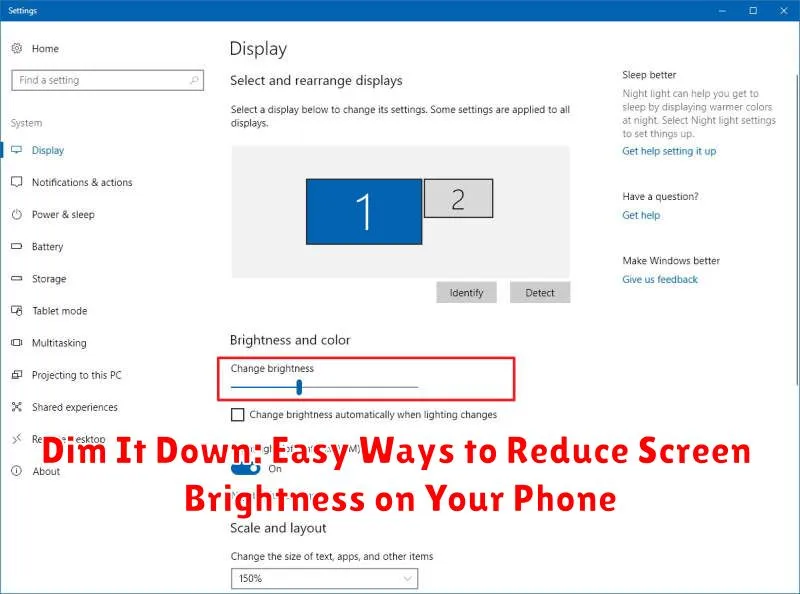
Most phones allow you to adjust brightness through a slider in the quick settings panel. This panel is usually accessed by swiping down from the top of the screen. Look for a sun icon or a slider labeled “Brightness.”
Alternatively, you can usually find brightness controls within your phone’s display settings. Navigate to the settings menu, then look for a section labeled “Display,” “Screen,” or similar. Within this section, you should find the brightness slider.
Experiment with the slider to find a comfortable brightness level for your current environment. Lowering the brightness even slightly can significantly reduce eye strain and conserve battery life.
Adaptive Brightness: Letting Your Phone Do the Work
Adaptive brightness, also known as auto-brightness, is a convenient feature that automatically adjusts your phone’s screen brightness based on the ambient light around you. This means your phone will dim the screen in darker environments and brighten it in brighter ones, optimizing visibility and conserving battery power.
Enabling adaptive brightness typically involves toggling a switch in your phone’s display settings. The exact location of this setting may vary depending on your phone’s operating system and manufacturer. Once enabled, a sensor on your phone constantly measures the surrounding light and adjusts the screen brightness accordingly.
While adaptive brightness is generally effective, it may not always match your personal preferences. For example, you might find the screen too bright in dimly lit rooms or too dim in direct sunlight. In such cases, you can usually make small manual adjustments even with adaptive brightness turned on. This allows you to fine-tune the brightness level while still benefiting from the automatic adjustments.
Third-Party Apps: More Control Over Your Display
For users seeking advanced brightness controls beyond the built-in phone settings, third-party apps offer extended functionality. These apps often provide finer adjustments, allowing you to dim the screen further than the standard minimum. This can be particularly helpful in extremely dark environments or for users with specific light sensitivity.
Many third-party apps also offer features like scheduled dimming, which automatically adjusts brightness based on the time of day. This can be useful for automating brightness reduction in the evening or early morning hours. Some apps even offer widgets for quick access to brightness controls directly from the home screen.
When considering a third-party brightness control app, it’s essential to review permissions carefully. Some apps may request access to system settings or other data that may not be necessary for basic brightness control. Prioritize reputable apps from trusted developers to ensure your privacy and security.
Blue Light Filters: Protecting Your Eyes at Night
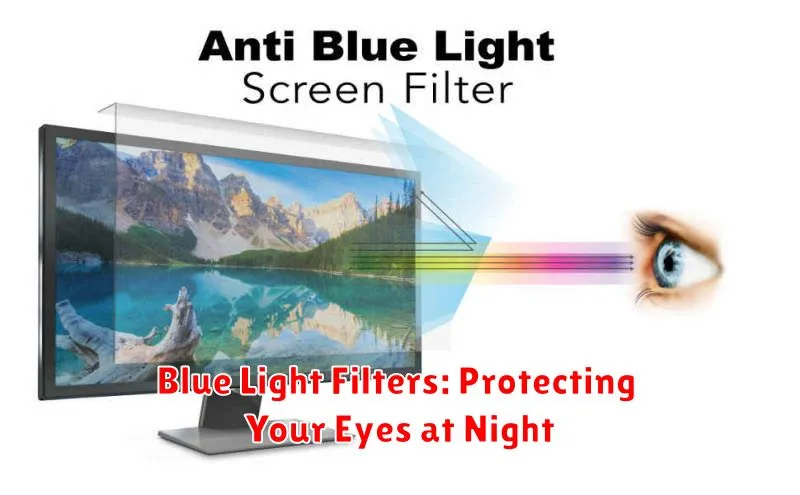
While reducing screen brightness helps, blue light emitted from screens can disrupt sleep patterns and cause eye strain, especially at night. Blue light filters minimize this impact by reducing the amount of blue light emitted from your device’s display.
Most modern smartphones include built-in blue light filters, often called “Night Mode,” “Night Shift,” or “Eye Comfort Shield.” These features typically allow you to schedule the filter to activate automatically at sunset and deactivate at sunrise. You can also manually enable or disable it and adjust the intensity of the filter.
Using a blue light filter can make your screen appear warmer, with a yellowish or reddish tint. The intensity of this tint is adjustable, allowing you to find a balance between eye comfort and color accuracy.
Scheduling Brightness Changes: Automating Your Preferences
Modern smartphones offer built-in tools to schedule brightness adjustments throughout the day, eliminating the need for manual changes. This automation offers significant convenience and ensures optimal screen visibility while potentially conserving battery life.
Accessing these features is typically straightforward. Look for “Scheduled Brightness,” “Adaptive Brightness,” or similar terms within your phone’s display settings. The specific terminology may vary slightly based on your device’s operating system (e.g., Android or iOS) and manufacturer.
Once located, you can define specific times and corresponding brightness levels. For example, you might schedule a lower brightness during nighttime hours and a higher brightness for daytime use. Some devices even offer location-based scheduling, adjusting brightness based on sunrise and sunset in your area.
Power Saving Mode: Dimming Your Screen for Longer Battery Life

Most modern smartphones offer a Power Saving Mode (sometimes called Low Power Mode or Battery Saver). This mode is designed to extend your battery life by optimizing several settings, including screen brightness. Activating Power Saving Mode typically reduces the screen brightness to a predetermined level, conserving power without turning off essential functions.
The specific brightness reduction percentage varies by device and operating system, but it’s often significant enough to make a noticeable difference in battery consumption. In addition to dimming the screen, Power Saving Mode can also limit background activity, reduce processor speed, and disable vibrations.
Accessing Power Saving Mode is generally straightforward. On most Android phones, you can find it in your Settings menu under Battery. On iPhones, you can usually access it through the Control Center or in Settings under Battery.
Enabling Power Saving Mode offers a rapid and effective way to reduce screen brightness and extend your phone’s battery life, especially when you’re in a situation where charging is difficult or unavailable.
