
Discovering if your phone has water damage can be crucial to its long-term functionality. Water damage can manifest in various ways, from obvious malfunctions like a blank screen to more subtle issues such as diminished battery life or erratic app behavior. This article will guide you through the essential steps to check for water damage on your phone, helping you identify potential problems early. Understanding how to identify these signs of water damage is the first step in mitigating further harm and potentially saving your device. We’ll cover various methods, from checking physical indicators like the Liquid Contact Indicator (LCI) to observing performance issues that could point to underlying water damage.
Regardless of your phone’s make or model, understanding the telltale signs of water damage is essential. This guide will equip you with the knowledge to determine if your phone has indeed suffered from water damage. From checking the LCI to troubleshooting performance issues, we’ll explore the most effective ways to assess your phone’s condition. Don’t let water damage ruin your valuable device – learn how to check for it and take appropriate action promptly. This article provides a comprehensive overview of how to check for water damage, empowering you to protect your phone and potentially avoid costly repairs.
Common Signs of Water Damage
Water damage can manifest in various ways, sometimes subtly, sometimes dramatically. Being able to recognize these signs is the first step in addressing the problem.
One of the most obvious signs is visible liquid trapped under the screen or within the camera lens. This can appear as small droplets or larger pockets of water.
Discoloration is another key indicator. Look for unusual spots or streaks under the screen, particularly whitish or dark patches. These may indicate water has seeped into the display layers.
Malfunctioning components can also point to water damage. A touchscreen that is unresponsive or erratic, distorted audio, or a non-functional camera can all be symptoms.
Difficulty charging or a rapid battery drain may also suggest underlying water damage impacting the power system.
Checking for Physical Indicators
One of the most straightforward ways to check for water damage is through a careful physical inspection of your device. Look for any obvious signs of liquid intrusion or corrosion.
Water Damage Indicator (LDI)
Most modern smartphones include a Liquid Damage Indicator (LDI), a small sticker that changes color upon contact with water. Typically white or silver, the LDI will turn red or pink if exposed to moisture. Locate the LDI for your specific phone model (consult your user manual or the manufacturer’s website) and check its color.
Corrosion and Discoloration
Check the charging port, headphone jack, and SIM card tray for any signs of corrosion or discoloration. Look for greenish or whitish residue, which can indicate mineral deposits left behind by water. Also, examine the areas around these ports for any swelling or bulging of the phone’s casing.
Screen Abnormalities
Water damage can sometimes manifest as discoloration or distortion under the screen. Look for unusual spots, lines, or haziness that weren’t present before. Be mindful that screen abnormalities could also indicate other types of damage.
Using Built-in Diagnostic Tests (If Available)
Some phone manufacturers include built-in diagnostic tools that can help identify hardware issues, including those caused by water damage. These tests vary by manufacturer and might not be present on all devices. Check your phone’s settings menu, often within a “System” or “About Phone” section, for options like “Diagnostics” or “Hardware Test.”
If available, running these tests may reveal problems with specific components affected by water exposure. For instance, the test might pinpoint malfunctions in the touch screen, proximity sensor, or other internal hardware. Consult your phone’s user manual or manufacturer’s website for specific instructions on how to access and interpret these tests.
Keep in mind that the absence of error messages in the diagnostic test doesn’t guarantee the absence of water damage. Some damage can be subtle and might not be immediately detectable by these tests. They offer another layer of assessment, but professional examination is always recommended for a conclusive diagnosis.
Testing the Speakers and Microphone
Sound quality issues can be a strong indicator of water damage. Test your phone’s speakers by playing music or a video. Listen for any distortion, muffled sounds, or complete lack of audio. Similarly, test the microphone by recording a voice memo or making a phone call. Ask the other person if they can hear you clearly. Static, crackling, or a significantly reduced volume are all potential signs of water damage affecting the microphone.
If you frequently use headphones, also test the audio output through the headphone jack. Again, listen for any distortions or abnormalities in sound. A malfunctioning microphone or speaker following exposure to water warrants further investigation and potentially professional repair.
Inspecting the Charging Port and Headphone Jack
Carefully examine both the charging port and headphone jack (if present) for any signs of water damage. Corrosion or discoloration inside these ports can indicate prior water exposure. Look for any residue or debris that might be trapped inside.
Important: Do not insert anything into the ports if you suspect water damage. Attempting to clean the ports yourself could worsen the situation. Instead, take your phone to a qualified technician.
Signs to watch out for include:
- Green or white powdery substance.
- Rust-colored stains.
- Black spots or markings.
If you notice any of these indicators, it’s highly probable your phone has experienced water damage. Professional assessment is recommended.
Checking the Screen for Discoloration or Distortion
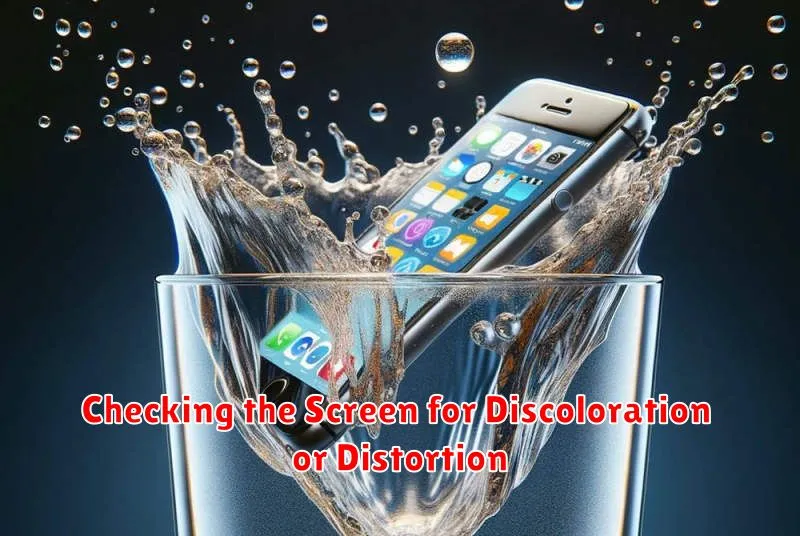
Water damage can often manifest on your phone’s screen. Carefully inspect the entire display for any signs of discoloration.
Look for unusual tints, spots, or patches that weren’t present before. These might appear as yellowish, greenish, or blackish areas. Pay close attention to the edges of the screen, as water can sometimes seep in from the sides.
In addition to discoloration, check for any distortion. This could include lines running across the display, blurring, or areas where the image appears warped or pixelated. These visual anomalies can be a strong indicator of water damage affecting the screen’s internal components.
If you notice any discoloration or distortion, it’s crucial to avoid using the device further and seek professional repair to prevent further damage.
Testing the Camera for Functionality
Water damage can significantly impact your phone’s camera. A thorough check of both front and rear cameras is essential. Launch the camera app and observe the viewfinder for any anomalies.
Look for signs of blurriness, distortion, or dark spots in the image preview. These are potential indicators of water damage affecting the lens or sensor.
Take several pictures and videos with both cameras. Carefully examine the captured media for the same issues observed in the preview. Pay close attention to unusual colors, lines, or pixelation. If the camera struggles to focus or produces completely black images, water damage is highly probable.
Monitoring Battery Performance and Temperature
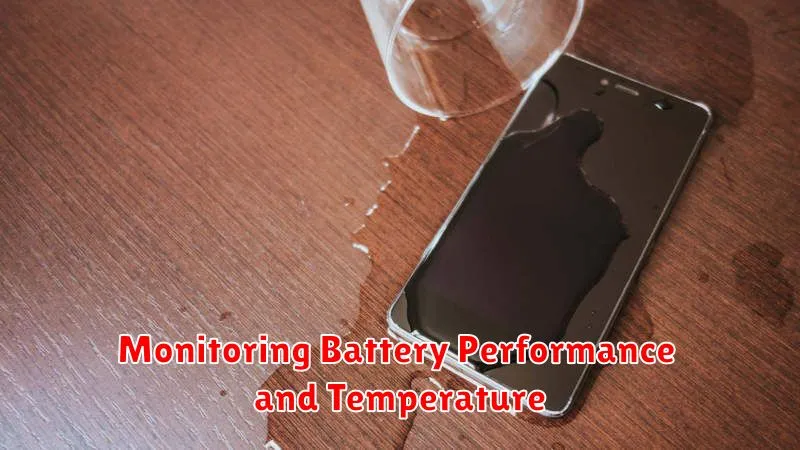
Water damage can significantly impact your phone’s battery. Unusual battery drain is a key indicator of potential water damage. If your phone suddenly dies even with a substantial charge remaining, or if the battery depletes much faster than usual, it could be a sign of water intrusion affecting the battery’s integrity.
In addition to rapid discharging, excessive heat can also be a symptom. If your phone feels unusually hot, especially when not in use or performing light tasks, water damage may have caused a short circuit or other internal issues affecting the battery’s thermal regulation. This heat can be detrimental to the battery’s lifespan and even pose a safety risk.
Be cautious when handling an overheating phone. If it becomes too hot to touch, power it off immediately and seek professional assistance. Do not attempt to charge it while it is overheating.
