
Is your phone constantly reminding you that its internal storage is full? Are you tired of deleting precious photos, videos, or apps just to make room for more? Running out of space on your phone can be incredibly frustrating, impacting its performance and limiting its functionality. In this article, we’ll explore effective strategies to reclaim your space and free up valuable internal storage on your phone, allowing you to enjoy its full potential once again. We’ll cover everything from identifying storage hogs to utilizing cloud storage solutions and implementing best practices for long-term storage management.
Reclaiming space on your phone doesn’t have to be a daunting task. By understanding how your phone’s internal storage is used and implementing a few key strategies, you can efficiently manage your data and keep your phone running smoothly. This guide provides practical and actionable steps to help you free up internal storage, whether you’re using an Android or iOS device. Learn how to identify and remove unnecessary files, optimize app usage, and leverage cloud services to create a more streamlined and efficient mobile experience. Say goodbye to low storage warnings and hello to a phone that performs at its best.
Understanding Your Phone’s Storage Usage
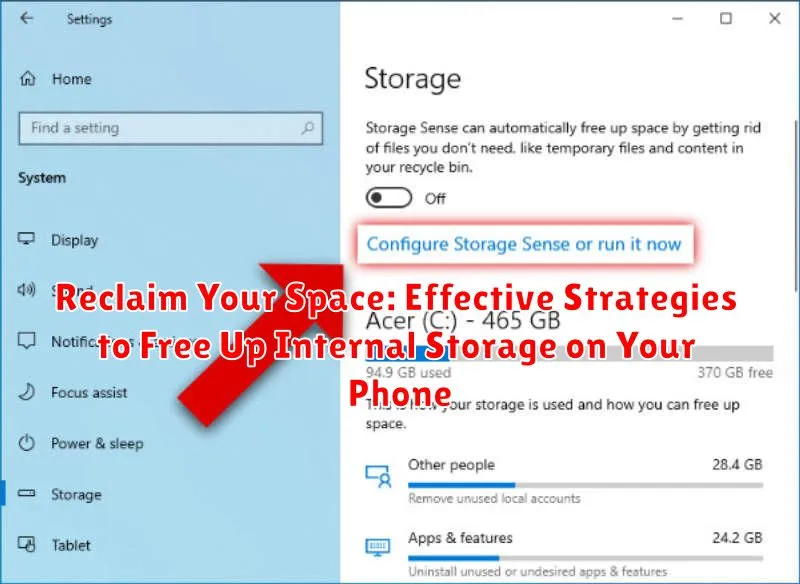
Before you can effectively free up space, it’s crucial to understand how your phone’s storage is being utilized. Modern smartphones offer tools to analyze storage consumption, providing a breakdown of what’s taking up space.
Typically, you can find this information within your phone’s settings menu, usually under a section named “Storage” or something similar. This section will often visually represent the distribution of your storage, categorized by data type.
Key categories to pay attention to include:
- Apps: This includes the app itself and its associated data.
- Photos & Videos: Often a major storage consumer.
- Audio: Music, podcasts, and other audio files.
- Downloads: Files downloaded from the internet.
- System: Essential operating system files.
- Other: Miscellaneous files and data.
By examining these categories, you can pinpoint the largest storage hogs and strategize accordingly. This understanding will enable you to make informed decisions about which files to delete or move to free up valuable space.
Clearing App Cache and Data: A Quick Fix
One of the easiest ways to free up space on your phone is by clearing app cache and data. Cache consists of temporary files stored by apps to speed up loading times. Over time, this can accumulate and consume significant storage. Data, on the other hand, includes user-specific information like login details and preferences.
Clearing the cache removes temporary files without affecting app functionality or user data. This is a safe and effective way to reclaim space quickly. However, clearing data will reset the app to its default settings, requiring you to re-enter logins and reconfigure preferences. Consider this option for apps you rarely use or those consuming excessive storage.
Most phones offer a streamlined process to clear cache and data within the device’s settings. Typically, you can navigate to the “Apps” or “Applications” section, select the desired app, and then find the options to clear cache and data.
Uninstalling Unused Apps: Reclaiming Valuable Space
One of the most effective ways to free up significant storage space on your phone is to uninstall applications you no longer use. Over time, apps accumulate, and even if not actively used, they still occupy precious storage. Identifying and removing these unused apps can make a noticeable difference.
Begin by reviewing your app list. Many phones offer a way to sort apps by usage frequency. This allows you to quickly pinpoint apps you haven’t accessed in weeks or even months. Consider uninstalling any app you don’t regularly use.
Be mindful of pre-installed apps. While some system apps cannot be uninstalled, others often can. Check your phone’s settings to see if removing pre-installed apps is an option. However, exercise caution when uninstalling pre-installed apps, as some may be essential for certain phone functionalities.
Managing Downloaded Files and Media
Downloaded files and media, such as images, videos, and documents, can quickly accumulate and consume significant storage space on your phone. Regularly reviewing and managing these files is crucial for maintaining optimal storage capacity.
Begin by identifying where downloaded files are stored on your device. Typically, there’s a designated “Downloads” folder. Carefully review the contents and delete any files that are no longer needed.
Media files, especially videos, are often the largest culprits. Consider transferring important photos and videos to a computer or external storage device for long-term safekeeping. Alternatively, deleting redundant copies or less important media can free up substantial space.
Many messaging apps automatically download received media to your device. Check the app’s settings to disable automatic downloads or configure them to download only when connected to Wi-Fi. This will prevent your storage from filling up with unwanted files.
Utilizing Cloud Storage: Offloading Your Data
Cloud storage services offer a convenient way to free up significant space on your device. By moving files to a secure online server, you can access them from anywhere with an internet connection while keeping your phone’s storage free for essential apps and data.
Several popular cloud storage providers, such as Google Drive, iCloud, Dropbox, and OneDrive, offer various plans, including free tiers with limited storage. Consider your storage needs and choose a provider that best suits your requirements.
Uploading files to the cloud is typically straightforward. Most providers offer mobile apps that streamline the process. Within these apps, you can often select specific folders or file types to automatically back up to the cloud. This automation ensures your data is consistently synced and readily accessible.
Once your files are safely stored in the cloud, you can safely delete them from your device to reclaim valuable internal storage. Be sure to understand the provider’s policies on file versioning and deletion to avoid accidental data loss.
Moving Data to an SD Card (if applicable)
If your phone supports expandable storage via an SD card, transferring data can significantly free up internal space. Compatibility is key; confirm your phone model accepts SD cards. SD card capacity also matters; choose a size that suits your storage needs.
Most phones offer built-in tools to move media files like photos, videos, and music to the SD card. Navigate to your device’s storage settings and locate the option to transfer data. Select the files you wish to move and confirm the transfer.
Some apps can also be moved, though this functionality depends on the app and operating system. Within your app settings, you might find an option to “Move to SD Card.” Be aware that moving apps might impact performance, especially with larger or more complex applications.
Identifying and Removing Duplicate Files
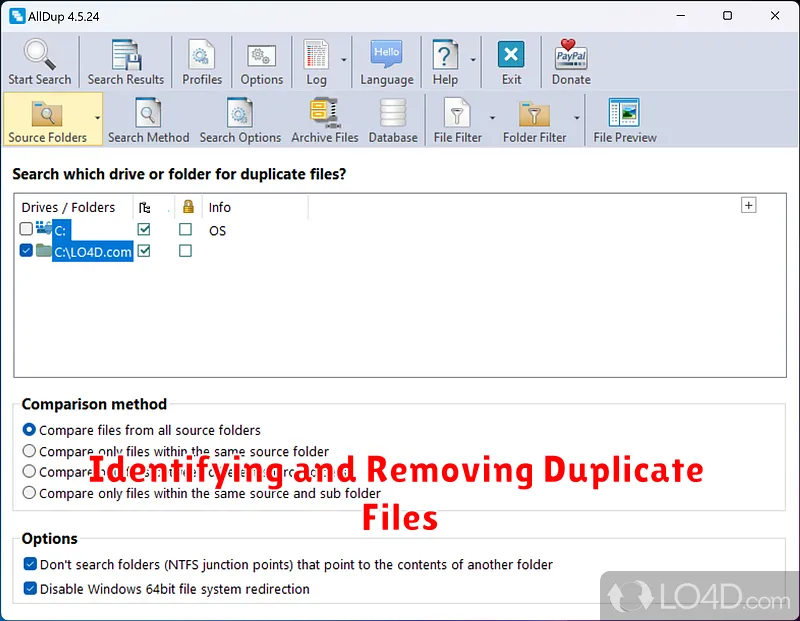
Duplicate files, often accumulated unknowingly, can consume a significant amount of storage space. Identifying and removing these duplicates is a simple yet effective way to reclaim valuable space on your device.
Several applications are specifically designed to locate and remove duplicate files. These apps scan your internal storage, identify identical files based on various criteria (e.g., file name, size, content), and allow you to selectively delete the duplicates. Ensure you choose a reputable app from a trusted source to avoid potential security risks.
Manual identification is also possible, though more time-consuming. Focusing on folders where duplicates are likely to accumulate, such as downloads or media folders, can be helpful. Carefully review files before deleting anything to avoid accidentally removing important data.
Factory Reset: A Last Resort
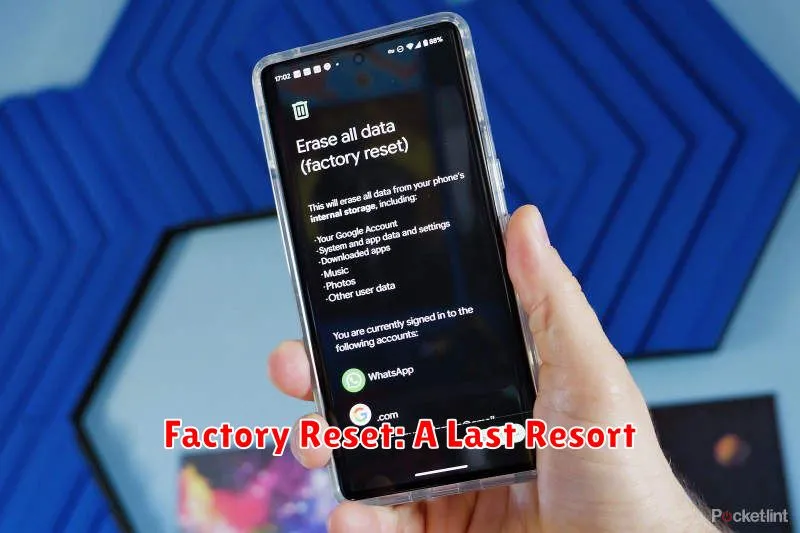
A factory reset should be considered a last resort for freeing up internal storage. This action will erase all data on your phone, reverting it back to its factory settings. While effective in clearing space, it requires careful preparation.
Before proceeding with a factory reset, back up all important data. This includes photos, videos, contacts, documents, and app data. Cloud services or a computer can be used for backup. Ensure the backup is complete before initiating the reset.
Once your data is secured, navigate to your phone’s settings to find the factory reset option. The location varies depending on the operating system and phone model. Follow the on-screen prompts carefully. After the reset, your phone will restart and guide you through the initial setup process.
