
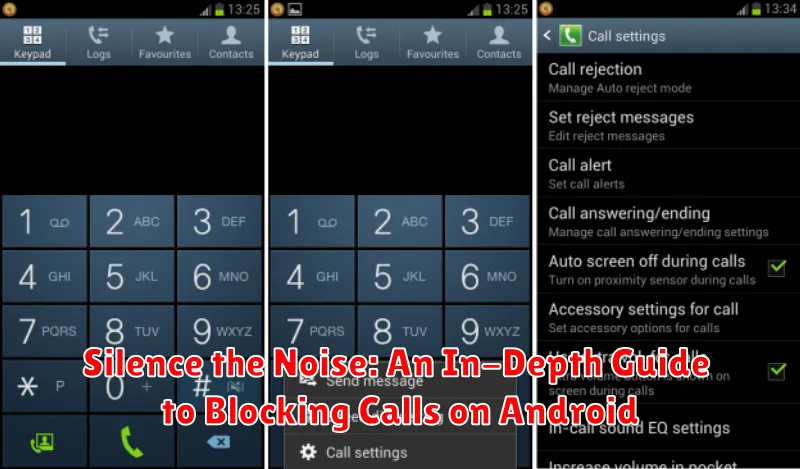
Tired of unwanted calls disrupting your day? Blocking calls on your Android device is a crucial skill for maintaining peace and productivity. This in-depth guide, “Silence the Noise: An In-Depth Guide to Blocking Calls on Android,” offers comprehensive instructions on how to block calls from unknown numbers, specific contacts, and even entire area codes. Learn to manage your calls effectively and reclaim control over your phone’s ringer.
Whether you’re dealing with spam calls, robocalls, or simply wish to avoid certain individuals, this guide provides various call-blocking methods. We’ll explore the built-in call-blocking features of Android, as well as effective third-party apps for enhanced call blocking and management. Say goodbye to interruptions and hello to tranquility with these simple yet powerful techniques to block unwanted calls on your Android device.
Understanding Call Blocking Functionality on Android
Android offers robust built-in features to manage unwanted calls. The core functionality revolves around identifying and rejecting calls based on predefined criteria, such as specific numbers or unknown callers. This allows users to control their incoming communications and minimize disruptions.
The system maintains a block list, which is a database of numbers designated to be rejected. When a call arrives, the system compares the incoming number against this list. If a match is found, the call is automatically silenced, often without any notification to the user. This provides a seamless and effective way to screen unwanted calls.
Furthermore, Android allows for blocking categories of callers, like unknown or private numbers. This blanket approach is useful for filtering out telemarketers or other unsolicited calls. These settings can be accessed and customized within the phone app’s settings menu, usually under “Call Blocking” or a similar label.
Blocking Calls from Specific Numbers
Blocking unwanted calls from specific numbers is a straightforward process on Android. There are a few common methods you can utilize directly from your phone.
Blocking from the Phone App
Most Android phones allow you to block numbers directly through the Phone app. Typically, you can long-press the unwanted number in your recent calls list and select “Block number” or a similar option. The specific steps may vary slightly depending on your device’s manufacturer and Android version.
Blocking from the Contacts App
If the number you wish to block is already in your contacts, you can usually block it directly from within the Contacts app. Open the contact, look for a menu option (often represented by three dots), and select “Block” or a similar option. This method provides a convenient way to manage calls from contacts you no longer wish to communicate with.
Important: Blocked numbers will typically go directly to voicemail, and you won’t receive any notification of their attempts to call. Be sure to check your voicemail occasionally if you’re expecting important communications that might have been inadvertently blocked.
Blocking Calls from Unknown or Private Numbers
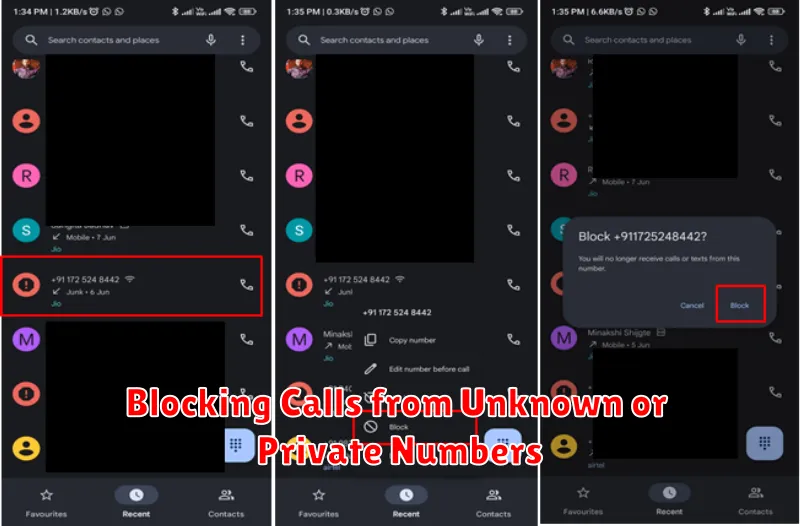
Dealing with calls from unknown or private numbers can be particularly frustrating. Fortunately, Android offers several ways to manage these unwanted interruptions. The most direct approach involves built-in phone app settings.
Most Android phones allow you to block calls from unknown numbers directly through your phone app’s settings. Typically, you can find an option to block calls from “Unknown,” “Private,” “No Caller ID,” or similar designations. Enabling this feature will automatically reject calls from numbers that withhold their caller ID information.
The exact steps may vary slightly depending on your device’s manufacturer and Android version. Generally, you can access these settings by opening your phone app, navigating to the settings or call settings menu, and then looking for call blocking or caller ID & spam protection options. It’s important to note that blocking all unknown numbers can inadvertently block legitimate calls from businesses, doctors’ offices, or other important contacts who may choose to suppress their caller ID.
Using Third-Party Apps for Advanced Call Blocking
While Android offers built-in call blocking features, third-party apps from the Google Play Store often provide more advanced functionalities and greater control over managing unwanted calls.
These apps can offer features like:
- Spam identification and blocking: Many apps use extensive databases to identify and automatically block known spam numbers.
- Schedule-based blocking: Block calls during specific times of the day, such as during meetings or at night.
- Block calls from area codes or prefixes: This feature allows blocking entire regions or types of numbers.
- Customizable block lists: Create and manage personalized lists of numbers to block.
- Backup and restore block lists: Preserve your block lists across devices.
When choosing a third-party app, consider factors such as user reviews, requested permissions, and features offered. Carefully review the app’s privacy policy to understand how your data is handled.
Managing Blocked Numbers and Reviewing Call Logs
Effectively managing your blocked numbers list is crucial for maintaining control over unwanted calls. Android provides tools to view, add, and remove numbers from your block list. The process may vary slightly depending on your device’s manufacturer and Android version, but generally, you can access blocked numbers through your phone app’s settings.
Viewing your blocked numbers list allows you to review currently blocked contacts and numbers. This is helpful to ensure intended numbers are blocked and to identify potentially mis-blocked contacts. You can typically find the blocked numbers list within the call settings menu of your phone app.
Adding numbers to the block list can often be done directly from your recent calls list or by manually entering the number within the call settings. Some Android versions also allow blocking directly from the contact details page.
Removing numbers from the block list allows you to restore communication with previously blocked contacts. This process typically involves selecting the number from your blocked list and choosing the “unblock” option.
Reviewing call logs can provide insights into blocked calls. While the details shown for blocked calls might be limited, you can still see the time and date of the attempted contact. Regularly reviewing your call logs can help identify persistent unwanted callers or patterns of harassment.
Troubleshooting Call Blocking Issues
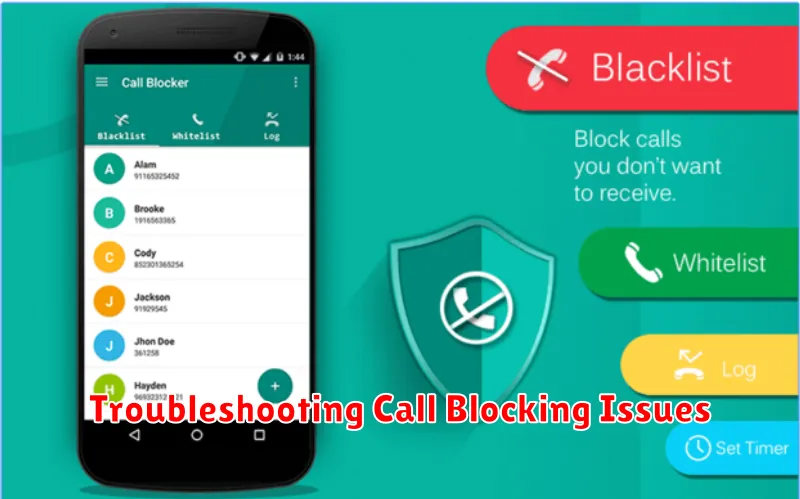
Occasionally, call blocking might not work as expected. Here are some common issues and solutions:
Blocked Calls Still Ringing Through
Verify the number is correctly blocked. Double-check the blocked numbers list to ensure the number is entered accurately. Restart your device. A simple restart can often resolve temporary software glitches affecting call blocking.
Unable to Block Specific Numbers
Check your phone’s storage. Insufficient storage can sometimes interfere with app functionality, including call blocking. Update your phone’s software. Outdated software can contain bugs that prevent call blocking from working correctly. Ensure you have the latest Android updates installed.
Third-Party App Conflicts
If you’re using a third-party call blocking app, ensure it’s compatible with your device and operating system. Conflicts between apps can sometimes disrupt functionality. Temporarily disable other call management apps to see if the issue resolves.
Contact your Carrier
If the problem persists, contact your carrier. They can provide support specific to your device and network and may offer additional call blocking services.
Restoring Blocked Numbers and Disabling Call Blocking
Sometimes, you might need to unblock a number or disable call blocking entirely. The process for doing this varies slightly depending on your device and Android version, but generally follows similar steps.
Restoring Blocked Numbers
To unblock a number, typically you’ll access your phone app’s settings, then find the blocked numbers list. Look for an option to “unblock,” “remove,” or similar wording next to the desired number. Selecting this will allow calls from that number to come through again.
Disabling Call Blocking
If you want to temporarily or permanently disable call blocking for all numbers, you’ll again navigate to your phone app’s settings. Locate the call blocking or blocked numbers section. There should be an option to toggle call blocking off entirely. Remember that disabling this feature will allow all calls to connect, including those from potentially unwanted numbers.
