
Has your phone suddenly started speaking a different language? Perhaps after a software update or accidental button press, you’ve found yourself lost in translation. Don’t worry, it’s a surprisingly common occurrence. This simple guide will walk you through the steps to change the language back to your preferred setting on various phone types, including Android and iPhone devices. Whether you’re struggling to understand basic menus or need to restore your phone’s language settings, we’ll provide clear, easy-to-follow instructions. Regain control and understanding of your device with our comprehensive guide on how to change your phone’s language.
Navigating a phone in an unfamiliar language can be frustrating and even debilitating. From simple tasks like sending messages to accessing important applications, understanding your phone’s interface is crucial. This guide offers a straightforward solution, providing clear instructions on how to change the language on your phone. We’ll cover the process for different operating systems, focusing on both Android and iPhone, ensuring you can quickly and easily switch back to your native language. Say goodbye to the confusion and regain comfortable control of your device by learning how to change your phone’s language settings.
Accessing Language Settings on Different Operating Systems
Locating the language settings on your phone can vary slightly depending on the operating system. Here’s a general overview for some common platforms:
Android
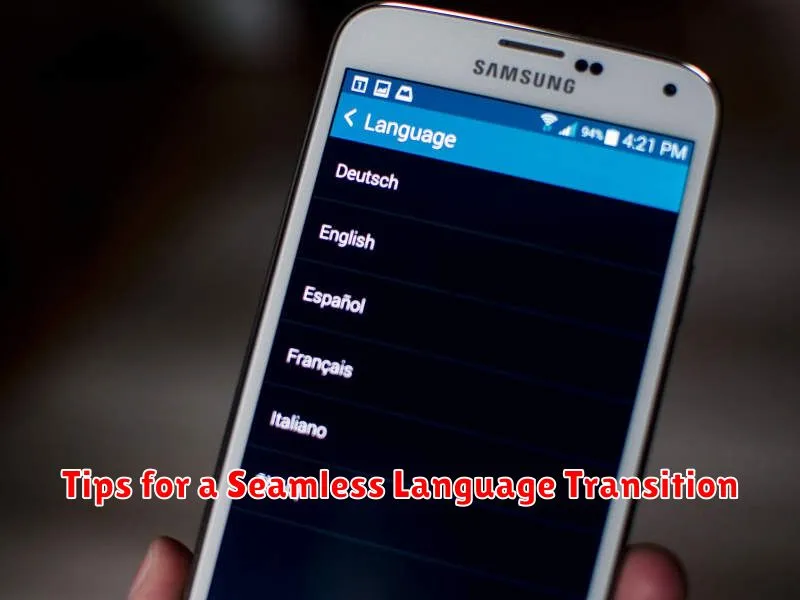
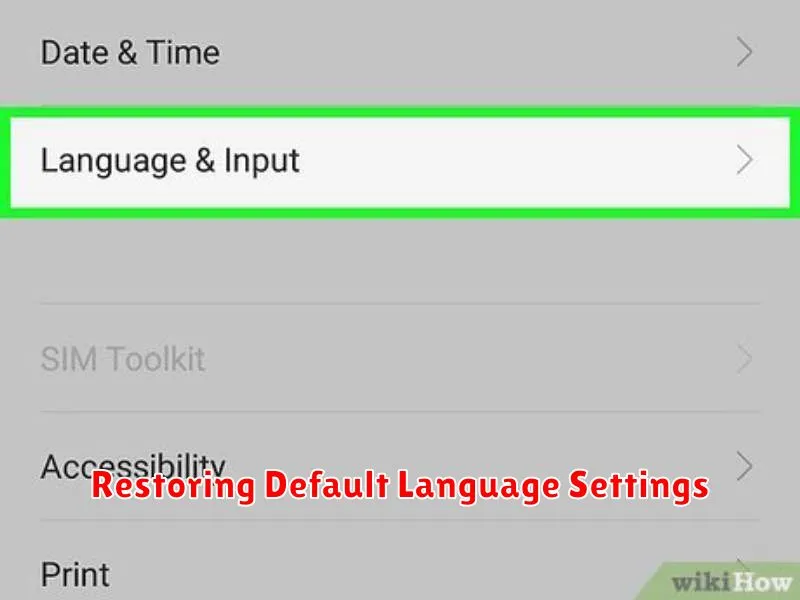
On most Android devices, you can find the language settings by navigating to Settings > System > Languages & input > Languages. The exact path might differ slightly based on your phone’s manufacturer and Android version, but the keywords to look for are “Languages” and “Input.”
iOS (iPhone/iPad)
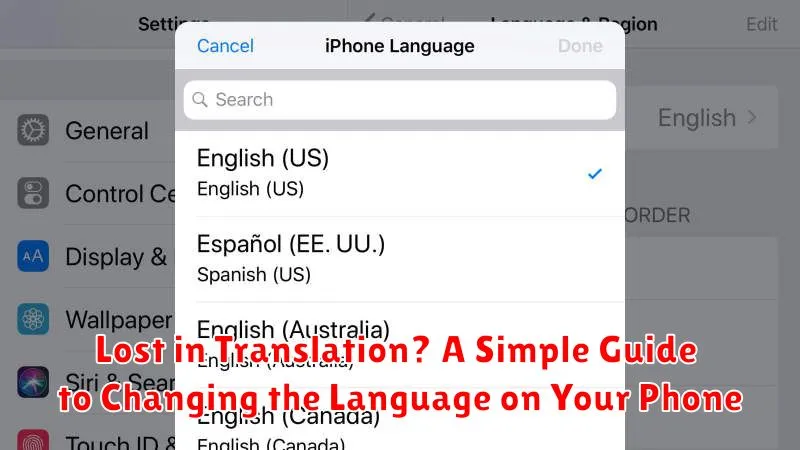
For Apple devices, the path is typically Settings > General > Language & Region > iPhone/iPad Language. Here, you can select your preferred language.
Step-by-Step Guide to Changing Your Phone’s Language
Once you’ve located your device’s language settings, follow these steps to change the language:
- Select a language: Browse the available languages and tap on your desired language. Your phone may organize languages alphabetically or by region.
- Confirm your choice: The system might prompt you to confirm your language selection. Tap “OK,” “Confirm,” or a similar button to proceed.
- Restart (if necessary): Some devices may require a restart for the language change to fully take effect. If prompted, restart your phone.
- Verify the change: After completing the steps, check your phone’s interface. Menu options, apps, and system messages should now appear in the selected language.
If your desired language isn’t listed, check your device’s documentation or manufacturer’s website for information on adding additional languages.
Troubleshooting Common Language Setting Issues
Occasionally, you might encounter issues while changing your phone’s language. Here are some common problems and solutions:
Language Not Available
If your desired language isn’t listed, ensure your phone’s software is up-to-date. Updating your operating system often adds new language options. If the language is still unavailable, your device may not support it.
Incorrect Language Display
If the language displays incorrectly (e.g., garbled characters), try restarting your phone. If the problem persists, check if a specific region setting needs to be adjusted alongside the language. For example, selecting “English” might require further specifying “US English” or “UK English.”
Keyboard Not Matching Language
After changing the language, you might find the keyboard still uses the previous language. You may need to separately enable or download a keyboard corresponding to your chosen language in your keyboard settings.
Some Apps Remain in the Old Language
Some apps have their own internal language settings independent of the system language. You might need to adjust the language within each individual app’s settings.
Navigating Multilingual Support Features
Modern smartphones offer robust multilingual support, going beyond just changing the system language. Understanding these features can greatly enhance your experience, particularly when interacting with diverse content or communicating with people in different languages.
Per-App Language Settings
Some apps allow you to choose a specific language independent of your system settings. This is useful if you prefer to use a particular app in a different language. Look for language options within individual app settings. Check app documentation for specific instructions, as availability varies.
In-App Translation
Many apps incorporate translation features directly. This allows you to quickly translate text within the app, facilitating communication and understanding in different languages. Be mindful that in-app translation quality can vary, so verify critical information with reliable sources.
Multilingual Keyboards
Installing and utilizing multilingual keyboards enables you to type in different languages. This is achieved by switching between keyboard layouts on your phone. You can often download additional keyboard languages from your phone’s settings. Practicing with different keyboard layouts is essential for proficient multilingual typing.
Tips for a Seamless Language Transition
Changing your phone’s language can be a big adjustment. Here are a few tips to help you navigate the transition smoothly:
Embrace the Learning Curve
Initially, navigating your phone in a new language might feel challenging. Don’t get discouraged. View it as an opportunity to learn and become more familiar with the language.
Utilize Translation Apps
Keep a translation app handy for the first few days. This can be helpful for quickly understanding unfamiliar words or phrases you encounter while using your phone.
Practice Regularly
The more you interact with your phone in the new language, the quicker you’ll adapt. Regular use reinforces vocabulary and builds familiarity with the new layout.
Start with Common Apps
Focus on using frequently accessed apps first, like messaging, email, and social media. This focused approach will help solidify basic vocabulary and navigation.
Restoring Default Language Settings
Sometimes, reverting to your phone’s original language settings is necessary. This can be helpful if you accidentally changed the language to one you don’t understand or if you’re troubleshooting a software issue.
The process for restoring default language settings varies slightly depending on your phone’s operating system (OS). Here’s a general guide:
Android Devices
Typically, you can find language settings within the “System” or “General Management” section of your device’s settings. Look for “Languages & input” and select your desired default language. It might be labeled as your region (e.g., “US English”).
iOS Devices
On iPhones, navigate to “Settings,” then “General,” followed by “Language & Region.” You can select your preferred language from the available options. Choosing your region will also adjust other locale-specific settings.
