
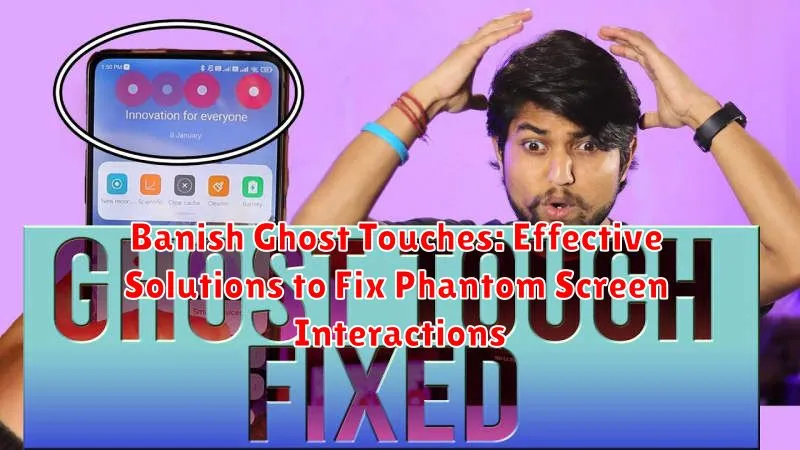
Experiencing the frustration of ghost touches, also known as phantom screen interactions, on your device? These erratic and unpredictable ghost touch occurrences can range from minor annoyances, like apps opening unexpectedly, to significant disruptions, such as unintended typing or dialing. This article addresses the pervasive issue of ghost touches, offering effective solutions to diagnose and resolve these phantom screen interactions and restore your device’s functionality. Whether you’re dealing with a smartphone, tablet, or touchscreen laptop, understanding the root causes of ghost touches is the first step toward reclaiming control over your screen.
Ghost touch problems can stem from a variety of sources, ranging from hardware malfunctions to software glitches. Phantom screen interactions can be caused by a damaged screen protector, faulty charger, overheating device, or even electromagnetic interference. This comprehensive guide will delve into the common culprits behind ghost touches and provide practical, step-by-step solutions to eliminate these phantom screen interactions. From simple troubleshooting techniques to more advanced fixes, you’ll find effective strategies to banish ghost touches for good and regain seamless control over your touch screen.
Understanding Ghost Touch: Causes and Symptoms
Ghost touch, also known as phantom touch, refers to the phenomenon where your phone’s screen registers input without any physical contact. This can manifest in a variety of ways, making it frustrating and disruptive to normal usage.
Symptoms of ghost touch often include:
- Apps opening and closing randomly.
- The cursor moving erratically across the screen.
- Typing random characters or making unintended calls.
- The screen responding sluggishly or not at all to actual touch input.
Several factors can contribute to this issue. Common causes include:
- Electrical Interference: Nearby chargers, power cables, or other electronic devices can sometimes interfere with the touchscreen’s capacitive sensors.
- Software Glitches: Temporary software problems within the operating system or apps can cause unpredictable screen behavior.
- Faulty Charger or Cable: Using a damaged or incompatible charger or cable can disrupt the electrical flow to the screen, triggering ghost touches.
- Hardware Problems: In some cases, a malfunctioning digitizer, loose internal connections, or other hardware issues may be the root cause.
Checking for Physical Damage or Screen Protectors
Physical damage to your screen, even minor cracks or chips, can disrupt the electrical flow and cause ghost touches. Carefully inspect your screen for any visible damage. Even internal damage not visible to the naked eye can cause issues. Look for signs like discoloration or bulging.
Screen protectors, while designed to protect your screen, can sometimes interfere with its responsiveness. A poorly fitted, damaged, or low-quality screen protector can create a layer that registers unintended touches. If you suspect this is the culprit, carefully remove the screen protector to see if the ghost touches persist.
If you find damage to your screen, a professional repair might be necessary. For problematic screen protectors, try a new, high-quality one ensuring proper application. If neither of these solves the issue, continue troubleshooting with the following steps.
Cleaning Your Phone’s Screen
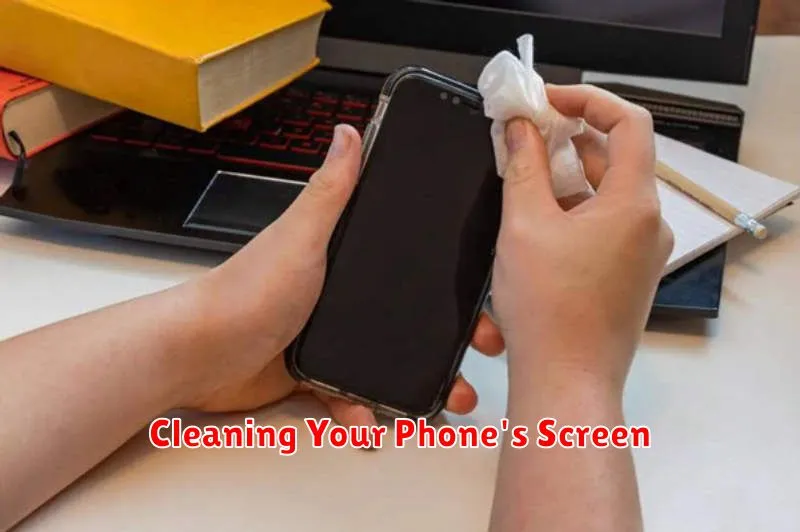
A seemingly simple solution, but often highly effective, is to thoroughly clean your phone’s screen. Dirt, dust, grease, and other residues can interfere with the screen’s responsiveness and trigger unintended actions, mimicking ghost touches.
Use a soft, lint-free cloth, preferably a microfiber cloth designed specifically for cleaning electronic screens. Avoid abrasive materials like paper towels or rough fabrics, which can scratch the display. Slightly dampen the cloth with distilled water or a specialized screen cleaning solution. Never spray liquid directly onto the screen. Gently wipe the entire surface, paying attention to the edges and corners. Ensure the screen is completely dry before using your device again.
Restarting Your Device to Resolve Temporary Software Glitches
Sometimes, ghost touches are caused by minor, temporary software glitches in the phone’s operating system or running applications. A simple restart can often resolve these issues. Restarting your device clears the active memory and closes all running apps, giving the system a fresh start.
The process for restarting varies slightly depending on your device’s manufacturer and operating system. Generally, you can restart by holding down the power button for several seconds until a menu appears. Select the restart option from this menu.
After restarting, observe your device for a while to see if the ghost touch problem has been resolved. If the problem persists, further troubleshooting may be needed.
Updating Your Phone’s Software and Apps
Outdated software can sometimes conflict with your phone’s touchscreen drivers, leading to erratic behavior like ghost touches. Regularly updating your phone’s operating system (OS) and apps is crucial for maintaining optimal performance and resolving potential bugs that could be causing the issue.
To update your phone’s OS, navigate to your device’s settings and look for the “Software Update” or “System Update” option. Check for available updates and install them if any are found. This process may vary slightly depending on your phone’s manufacturer and operating system.
App updates are typically managed through your device’s app store. Open the app store and check for updates to individual apps or select “Update All” to update all apps simultaneously. Keeping your apps updated ensures compatibility with the latest OS version and often includes performance enhancements and bug fixes that can resolve ghost touch problems.
Running Hardware Diagnostics (If Available)
Many devices offer built-in diagnostic tools that can help pinpoint hardware problems. These tests can often identify issues with the touchscreen digitizer, which is the component responsible for registering your touches. Accessing these diagnostics varies by device manufacturer. Consult your user manual or the manufacturer’s website for specific instructions on how to run these tests.
If the diagnostics reveal a problem with the touchscreen, this strongly suggests a hardware fault. In such cases, the next steps often involve contacting the manufacturer or a qualified repair technician.
If the diagnostics don’t reveal any issues, the problem may be software-related. Consider exploring other troubleshooting options like booting into safe mode or performing a factory reset.
Booting into Safe Mode to Identify Conflicting Apps
Sometimes, ghost touches can be triggered by recently installed apps that conflict with your phone’s touchscreen drivers or software. Booting your phone into safe mode temporarily disables all third-party applications, allowing you to isolate the source of the problem.
If the ghost touches disappear in safe mode, it strongly suggests a third-party app is the culprit. To pinpoint the problematic app, systematically uninstall recently added apps one by one, restarting your phone after each removal and testing for ghost touches.
The process for entering safe mode varies depending on your phone’s manufacturer and Android version. Generally, you can access it by holding down the power button, then long-pressing the “Power off” option. This usually prompts a safe mode confirmation.
Remember to reboot your phone normally after troubleshooting to exit safe mode and re-enable your apps. If the issue persists even in safe mode, the problem likely lies with the hardware or operating system itself.
Factory Resetting Your Phone as a Last Resort
If all else fails, a factory reset can often eliminate ghost touch issues. This process restores your phone to its original software state, effectively removing all installed apps, settings, and data. It’s a powerful solution, but it’s crucial to back up your important data beforehand as it will be permanently erased.
The exact steps for factory resetting vary by phone model. Generally, you can find this option within the Settings menu, often under “System,” “Backup & reset,” or a similar category. Carefully follow the on-screen instructions provided by your device.
After the reset, your phone will restart and guide you through the initial setup process. Observe your screen for any recurring ghost touches. If the problem persists even after a factory reset, it’s highly likely that the issue is hardware-related, requiring professional repair.
Seeking Professional Repair If Necessary
If the troubleshooting steps outlined above haven’t resolved the ghost touch issue, it’s highly probable that a hardware malfunction is the root cause. This could range from a faulty digitizer to internal component damage. At this stage, seeking professional repair is the most prudent course of action.
Authorized service centers for your device’s manufacturer are the ideal choice. They possess the specialized tools, diagnostic equipment, and genuine replacement parts necessary to effectively address hardware problems. Technicians at these centers are also trained to identify and rectify the specific issues related to your device model.
While third-party repair shops might offer a more affordable alternative, it’s crucial to exercise caution. Ensure they have a reputable track record and employ qualified technicians. Inquire about warranties on their repairs and the quality of parts used. A subpar repair could exacerbate the problem or introduce new issues.
Before submitting your device for repair, back up your data. This precautionary step safeguards your valuable information in case data loss occurs during the repair process. Inform the technician of the specific ghost touch symptoms you’ve experienced to aid in their diagnosis.
Preventing Ghost Touch in the Future
Proactive measures can significantly reduce the risk of experiencing ghost touch. Keeping your device’s software updated is crucial. Updates often include patches that address software glitches that can contribute to phantom screen interactions.
Screen protector compatibility plays a vital role. Ensure your screen protector is designed for your specific device model. Ill-fitting or low-quality protectors can interfere with the touchscreen’s responsiveness and lead to ghost touch.
Environmental factors can also contribute. Avoid using your device in extreme temperatures or high humidity. These conditions can affect the touchscreen’s performance. Similarly, keep your screen clean and free from moisture and debris.
Charging habits can impact touchscreen sensitivity. Use the charger provided by the manufacturer or a reputable alternative. Avoid using damaged chargers or charging cables, as these can introduce electrical interference.
