
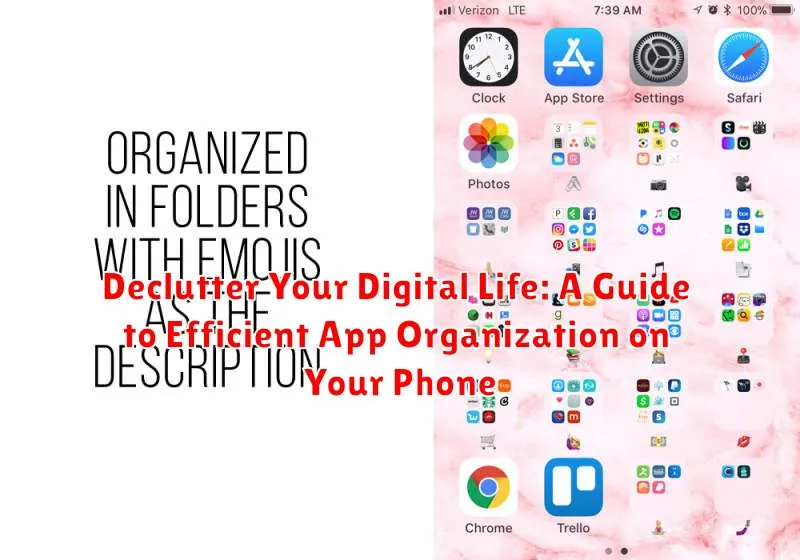
In today’s fast-paced digital world, our smartphones have become indispensable tools, serving as gateways to communication, information, and entertainment. However, the convenience they offer can quickly be overshadowed by the overwhelming accumulation of apps. A cluttered phone screen can lead to decreased productivity, increased stress, and a general sense of digital chaos. This guide provides a comprehensive approach to decluttering your digital life by focusing on efficient app organization on your phone. Learn how to reclaim control of your device and optimize its functionality for a more streamlined and enjoyable mobile experience.
Decluttering your digital life, specifically your phone, through efficient app organization is not merely about aesthetics; it’s about maximizing your device’s potential and minimizing digital distractions. This article presents practical strategies for effectively organizing your apps, encompassing everything from deleting unused applications to implementing intelligent folder structures. By following these steps, you’ll transform your phone from a source of digital clutter into a highly efficient and personalized tool that seamlessly integrates into your daily workflow. Prepare to embark on a journey towards a more organized and productive digital life.
Understanding Your App Usage Patterns
The first step towards efficient app organization is understanding how you interact with your phone. Analyzing your app usage patterns provides valuable insights into which apps deserve prime real estate on your home screen and which can be tucked away.
Identify your most frequently used apps. Which apps do you open multiple times a day? These are your primary tools and should be easily accessible.
Recognize time-wasting apps. Be honest about which apps consume more time than they should. Consider moving these apps to a less accessible location to minimize distractions.
Categorize your apps by function. Do you have several social media apps, productivity tools, or games? Grouping similar apps together helps create a more logical organization system.
By understanding your usage patterns, you can create a personalized app organization system that improves your phone’s functionality and reduces digital clutter.
Choosing the Right Organization Method: Folders, Alphabetical, or by Color
Once you understand your app usage, it’s time to choose an organization method that suits you best. Several options exist, each with its own advantages and disadvantages. Consider these popular methods:
Folders
Folders offer a way to group similar apps together. This is especially useful if you have numerous apps. Create folders based on categories such as productivity, social media, entertainment, or utilities.
Alphabetical
Arranging apps alphabetically provides a simple and straightforward approach. Locating specific apps becomes easy as you simply scroll to the corresponding letter. This method requires minimal setup and maintenance.
By Color
Organizing apps by color is a visually appealing method. This approach relies on visual memory and can be helpful for quickly identifying apps based on their icons. However, it may become less practical as your app collection grows.
Leveraging Built-in Phone Features: Widgets and App Library
Modern smartphones offer integrated features designed to streamline app organization and access. Widgets provide at-a-glance information and functionality directly on your home screen, minimizing the need to open apps constantly. Consider using widgets for tasks like checking the weather, viewing calendar appointments, or controlling music playback.
The App Library, available on some operating systems, automatically categorizes your apps, making it easier to locate less frequently used apps without cluttering your home screen. This feature often includes a search function, further expediting app retrieval. Explore these built-in tools to optimize your home screen and improve your overall phone navigation experience. Proper use of these features can significantly reduce home screen clutter and improve efficiency.
Utilizing Third-Party App Organizers and Launchers
Beyond the built-in capabilities of your phone’s operating system, third-party app organizers and launchers offer advanced customization and control over your app arrangement. These tools can provide unique functionalities not found in standard phone features.
App organizers often focus on streamlining app access within the existing operating system. They might offer features like custom app groupings based on usage, automated sorting, or enhanced search functionality. Consider these if you’re looking to refine your existing organizational structure without a complete overhaul.
Launchers, on the other hand, replace your phone’s default home screen and app drawer with a completely new interface. They grant extensive control over the look, feel, and functionality of your phone. Launchers often incorporate advanced features like gesture controls, custom icon packs, and more powerful widgets, enabling a highly personalized and efficient app experience. Choose a launcher if you’re aiming for a significant change in how you interact with your apps.
Exploring third-party options can further enhance your app organization and unlock new possibilities for a truly decluttered and streamlined digital experience. Carefully consider your needs and preferences when choosing a third-party tool, as the level of customization and control can vary greatly.
Creating a Minimalist Home Screen: Prioritizing Essential Apps
A minimalist home screen promotes focus and reduces digital distractions. The key is to prioritize. Start by identifying the apps you use multiple times a day. These are your essential tools and deserve prime real estate on your home screen.
Everything else should be moved. Consider relocating less frequently used apps to the app drawer or utilizing folders. This decluttering process might feel drastic initially, but the increased efficiency and reduced visual clutter will be worth the effort.
Think about your daily routine. Do you check email first thing in the morning? If so, your email app is a priority. Do you use a specific navigation app for your commute? That’s another essential. Limit your home screen to only these truly necessary apps.
Resist the urge to fill the empty space. Embrace the negative space. It contributes to a calmer, more focused digital experience. A minimalist home screen isn’t about having as few apps as possible, but about ensuring quick access to the ones that truly matter.
Optimizing App Folders for Quick Access
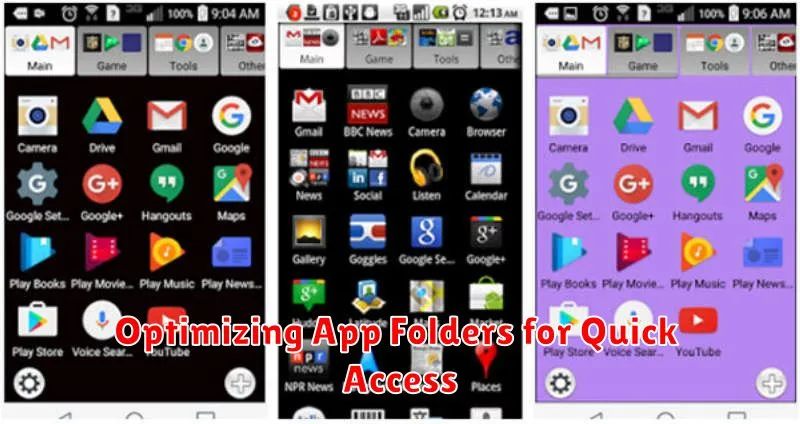
Streamlining your app folders is key to a clutter-free phone experience. Consider grouping apps by function. For example, create folders for “Productivity,” “Social,” “Photography,” or “Entertainment.”
Keep folder names concise and descriptive. Avoid generic labels like “Utilities” and opt for more specific names like “Travel” or “Finance.” This allows for quicker identification and access.
Limit the number of apps within each folder. Overcrowded folders defeat the purpose of organization. If a folder becomes too large, consider sub-categorizing or reassessing the necessity of all the apps within.
Prioritize frequently used apps on your home screen for immediate access. Less frequently used apps can be placed within folders or even removed altogether if no longer needed.
Regularly Decluttering and Uninstalling Unused Apps
Just like your physical space, your digital environment requires regular decluttering. Set aside time, perhaps weekly or monthly, to review the apps on your phone.
Identify unused apps. If you haven’t used an app in the past month, it’s a potential candidate for removal. Be honest with yourself about your usage habits. That game you downloaded but haven’t touched? It’s taking up valuable space and potentially slowing down your phone.
Uninstall the unnecessary apps. Don’t just offload them; completely uninstall them to free up the most storage. Most operating systems offer a straightforward way to uninstall apps directly from the home screen or through settings.
Review app permissions. While uninstalling, take a moment to review the permissions granted to the remaining apps. Revoke access to any data or features that seem unnecessary or excessive.
Personalizing App Icons and Themes
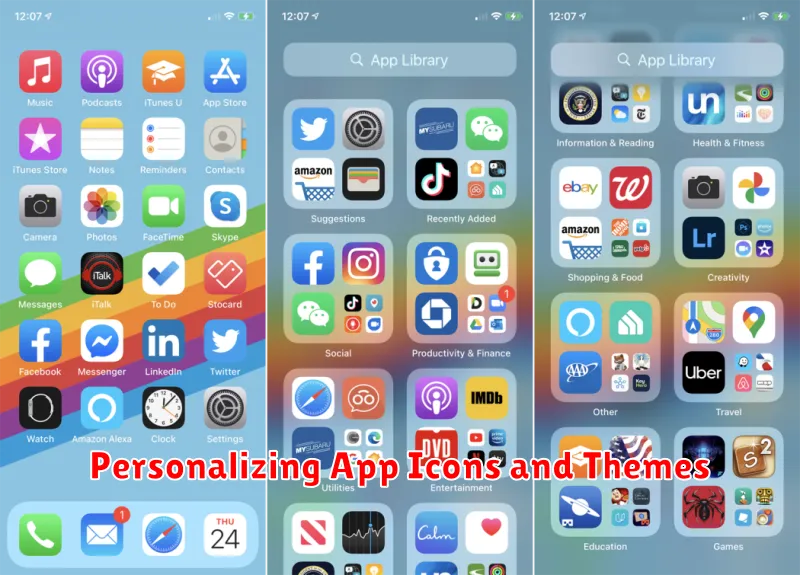
Customizing your app icons and applying unique themes can significantly enhance your phone’s aesthetic appeal and improve your overall user experience. A visually appealing home screen can contribute to a more organized and enjoyable digital environment.
Many launchers offer built-in icon packs or support for third-party icon packs downloaded from app stores. Explore different icon styles, from minimalist to vibrant, to find one that suits your personal preference.
Themes can provide a cohesive look for your home screen, impacting wallpapers, widgets, and sometimes even app interfaces. Experiment with various themes to find one that complements your chosen icon pack and creates a visually pleasing and organized look.
A consistent visual style can make it easier to locate apps, contributing to a more efficient and enjoyable phone usage experience. However, be mindful that excessively complex themes or large icon packs might consume additional resources.
