
In today’s fast-paced digital world, voice control is rapidly becoming the preferred method of interacting with technology. Google Assistant stands at the forefront of this revolution, offering a seamless and intuitive way to manage tasks, access information, and control your smart home devices. This comprehensive guide, “Mastering Google Assistant: Your Ultimate Guide to Voice Control,” will equip you with the knowledge and skills necessary to harness the full potential of this powerful tool. From basic commands to advanced features, we’ll explore everything you need to know to become a true Google Assistant power user.
Whether you’re a novice just starting out with voice control or an experienced user looking to expand your Google Assistant expertise, this guide is designed for you. We’ll delve into the intricacies of setting up and customizing your Google Assistant, mastering voice commands, and exploring its diverse range of functionalities. Discover how Google Assistant can simplify your daily life, boost your productivity, and enhance your overall technological experience. Prepare to unlock the full potential of voice control with this ultimate guide to Mastering Google Assistant.
Setting Up Google Assistant on Your Device
Setting up Google Assistant is generally a straightforward process. The specific steps may vary slightly depending on your device and operating system.
Android Devices
On most Android devices, Google Assistant is already built-in. Ensure your device is running a compatible version of Android and that you’re logged into your Google account. You can typically activate the Assistant by long-pressing the home button or saying “Hey Google.” You may be prompted to complete a short setup process.
iOS Devices
For iOS devices, you’ll need to download the Google Assistant app from the App Store. After installation, open the app and log in with your Google account. Follow the on-screen instructions to grant the necessary permissions.
Smart Speakers and Displays
If you’re setting up Google Assistant on a smart speaker or display (like a Google Home or Nest Hub), plug in the device and connect it to your Wi-Fi network. Use the Google Home app on your phone to complete the setup and link it to your Google account. The app will guide you through the process.
Basic Voice Commands and Actions
Interacting with Google Assistant starts with understanding its core commands. “Hey Google” or “OK Google” are the wake phrases that activate the Assistant. Once activated, you can issue a variety of commands.
For basic information retrieval, ask questions like “What’s the weather today?” or “What’s the capital of France?” Google Assistant can also manage your schedule. Try “Set a reminder to call John at 5 PM” or “Create a calendar event for my dentist appointment next Tuesday.”
Control your smart home devices with commands such as “Turn off the living room lights” or “Set the thermostat to 72 degrees.” For entertainment, request “Play some jazz music” or “Tell me a joke.”
These basic voice commands provide a foundation for utilizing Google Assistant’s capabilities. Experiment with different phrasing to find what works best for you.
Advanced Google Assistant Features
Beyond the basics, Google Assistant offers a range of powerful features to streamline your digital life. Proactive assistance anticipates your needs, providing reminders and information before you even ask. For example, it might alert you about traffic delays on your commute.
Routines allow you to automate multiple actions with a single command. Saying “Good morning” could trigger turning on lights, playing music, and providing a weather report. Custom commands offer even greater personalization. Define your own phrases to trigger specific actions, tailored to your individual needs.
Interpreter mode facilitates real-time translation during conversations. This feature can be invaluable when communicating with someone who speaks a different language. Lastly, explore the Actions directory to discover and enable third-party integrations, expanding Google Assistant’s capabilities even further.
Integrating Google Assistant with Other Apps
Google Assistant’s power expands significantly when integrated with other applications. This connectivity allows you to control and interact with various third-party apps using voice commands. Connecting your favorite apps unlocks a new level of hands-free control and convenience.
You can link compatible apps through the Google Assistant settings. Typically, you’ll find a “Services” or “Linked accounts” section where you can browse and select the apps you want to integrate. The process usually involves granting Google Assistant permission to access certain features within those apps.
Once connected, you can use voice commands specific to the integrated apps. For instance, you might say, “Play my workout playlist on Spotify,” or “Add milk to my shopping list in AnyList.” The specific commands vary depending on the app and its functionality. Explore individual app settings within the Google Assistant app to discover the available commands.
Integrating apps with Google Assistant streamlines tasks and centralizes control, making your smart home and digital life even more efficient.
Troubleshooting Common Google Assistant Issues
Experiencing problems with your Google Assistant? Here are some common issues and their solutions.
Google Assistant Not Responding
If Google Assistant isn’t responding to “Hey Google” or “Ok Google”, ensure your device’s microphone is working correctly. Check your internet connection as a stable connection is required. Also, verify that the Google Assistant app is up to date.
Assistant Misunderstands Commands
Speak clearly and concisely when giving commands. Background noise can interfere with voice recognition. Try rephrasing your command using different wording.
Issues with Connected Devices
If you’re having trouble controlling smart home devices, make sure they are properly linked to your Google Assistant. Check your device’s compatibility and try relinking them if necessary.
Assistant Providing Incorrect Information
Google Assistant relies on information from various sources. If the information is inaccurate, you can provide feedback directly through the Google Assistant app. This helps improve accuracy over time.
Tips and Tricks for Optimizing Google Assistant Usage
Customize your experience by training Google Assistant to recognize your voice. This improves accuracy and allows for personalized responses. Access the Voice Match settings in the Google Assistant app.
Use natural language when speaking to Google Assistant. Phrase your requests as you would in a normal conversation for better understanding.
Explore routines to automate multiple actions with a single command. For example, a “Good morning” routine can turn on lights, provide a weather report, and play your favorite news podcast.
Manage your reminders and notes efficiently. Set location-based reminders to trigger when you arrive or leave a specific place. Create shopping lists and add items using voice commands.
Leverage the “What’s on my screen?” feature to get contextual information about the content displayed on your phone. This allows you to quickly perform actions related to what you’re viewing.
Privacy Considerations with Voice Assistants
While voice assistants offer unparalleled convenience, it’s crucial to understand the privacy implications.
Voice assistants record your voice commands, and this data is typically stored and analyzed. This analysis allows the assistant to learn your preferences and improve its responses. However, understanding how this data is used and how long it’s retained is essential.
Review privacy settings: Explore the privacy settings for your Google Assistant. You can often control the level of data collection and storage.
Voice activity controls: You can usually manage and delete your voice activity data. This allows you to control the information Google retains about your interactions.
Be mindful of sensitive information: Avoid sharing highly sensitive information like passwords or financial details through voice commands.
Voice Control for Smart Home Devices
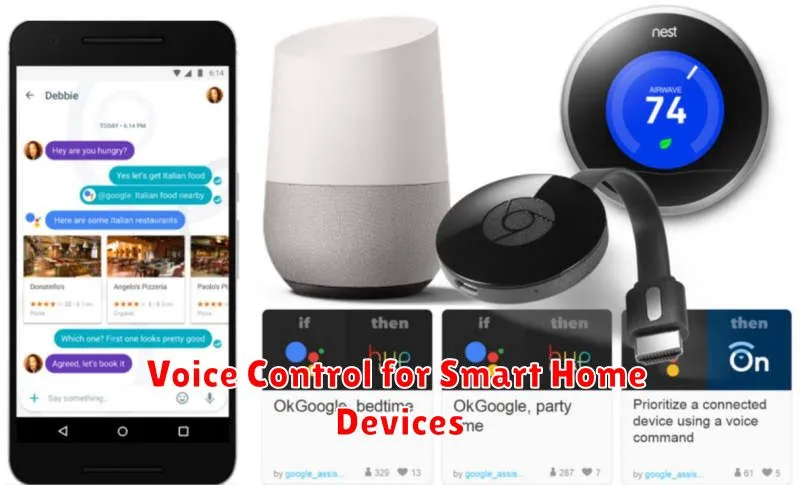
Integrating Google Assistant with your smart home ecosystem provides unparalleled convenience and control. From lighting and thermostats to security systems and entertainment, voice commands streamline managing your connected devices.
Setting up voice control is typically straightforward. Most smart home devices require linking their respective apps to your Google account. Once connected, you can discover devices within the Google Home app and assign them to specific rooms or groups.
Controlling your devices is as simple as speaking natural commands. For example, “Hey Google, turn off the living room lights” or “Hey Google, set the thermostat to 70 degrees.” You can also create custom routines for complex actions, such as a “good morning” routine that turns on lights, adjusts the thermostat, and starts your coffee maker.
Expanding your smart home setup with compatible devices opens up new possibilities for voice control. Explore options like smart speakers, displays, plugs, and appliances to tailor your experience. With ongoing development, the future of voice-controlled smart homes promises even greater automation and personalization.
